Listing Management/Matrix – New Features – 11/16/21
Listing Management Changes
Last night, we released the following changes in our Listing Management software:
1. Field Verbiage Text Change for Selling Agent and Co Selling Agent
- Previously, the field verbiage read “Enter Selling Agent’s DRE# and click ‘Enter’ Key.” We changed the verbiage to read: “Enter Selling Agent’s License Number.”
- Previously, the field verbiage read “Enter Co Selling Agent’s DRE# and click ‘Enter’ Key.” We changed the verbiage to read: “Enter Co Selling Agent’s License Number.”
2. Allow Agents to Enter Members Only Listings for Residential Lease Rentals
- Previously, the system did not allow agents to enter a rental as Members Only.
3. Show Members Only Icon in the Listing Info Section
- When in edit mode, the upper right corner of the listing will now display the corresponding icon for Members Only listings.
4. Allow Agents to Convert Their Drafts from/to Regular/Members Only Show/Members Only Do Not Show
- This allows agents to change their draft in the event they started on the wrong path. For example, if they started entering a Members Only Show listing but actually wanted a Members Only Do Not Show listing, they will be able to convert it without needing to cancel or start over.
5. Allow Agents to Remove Their Release Clause for Contingency/Pending
- Previously, agents could specify there was a release clause when changing the status from Active to Contingency or Pending, but they could not remove it. We added this functionality.
6. Allow Agents to Multi-Class Their Members Only Show Listings
- Previously, agents could only multi-class Regular listing but not Members Only Show listings. We added this functionality, whereby the agent selects “Add Multi-Class” and selects the Regular or Members Only Show listing they want to multi class. (Note: we are not allowing multi-class for Members Only Do Not Show.)
7. Change Verbiage for Members Only Popups
- We slightly modified the verbiage in 3 Members Only popups.
Matrix – New Features
Additionally, CoreLogic released a set of new features in Matrix today:
1. “View Comparable Properties” Button
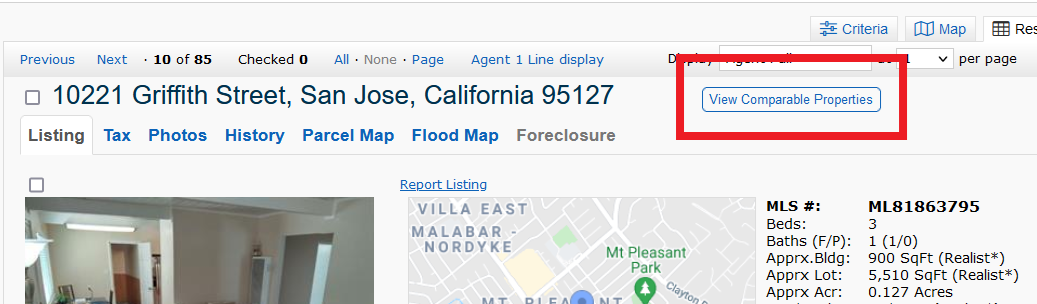
When the button is clicked, Matrix will automatically search for the nearest comps (up to 20) with a similar number of bedrooms, and agents can select which properties they want in their CMA.

Once the desires properties are selected, agents can either click on “Create CMA” to generate a full CMA or “View Report” to create a “Brief Summary of Comparable Properties” report:
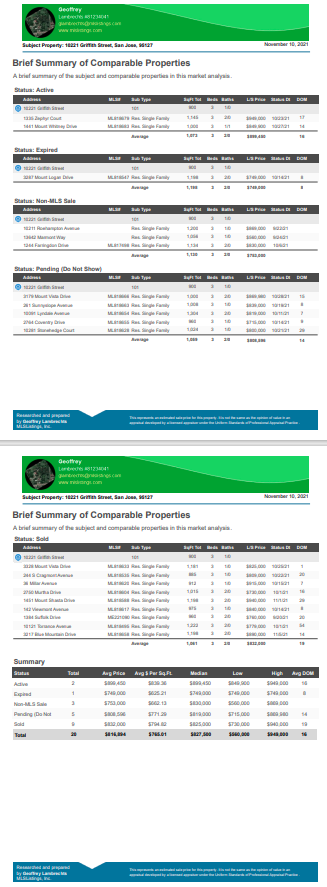
When the button is clicked, Matrix will automatically search for the nearest comps (up to 20) with a similar number of bedrooms, and agents can select which properties they want in their CMA.
Once the desires properties are selected, agents can either click on “Create CMA” to generate a full CMA or “View Report” to create a “Brief Summary of Comparable Properties” report:
2. “Client Thumbnail with Map” Report
This report is basically a client thumbnail report with the added interactive map. In the report, agents will be able to zoom in/out on the map and change the view from/to Map/Satellite/Street View – without needing to expand the map.
This report is basically a client thumbnail report with the added interactive map. In the report, agents will be able to zoom in/out on the map and change the view from/to Map/Satellite/Street View – without needing to expand the map.
3. “Quick CMA (Modern)” Button
CoreLogic also added a new Quick CMA (Modern) button, which is now on the bottom right of the Actions tab:
Here is a preview of how the Quick CMA (Modern) will look: